
For musicians, DOT ($49 once, free for 10 recordings) records what your Mac plays, a mic or an audio interface on macOS 14.4 or later, and saves each take trimmed with its key, BPM and chords.
Record a mic with QuickTime
- 1
Open QuickTime Player.
Choose File›New Audio Recording.
- 2
Pick the mic.
Click the arrow next to Record and choose the built-in mic, a USB mic or AirPods. Under Quality, Maximum saves uncompressed audio. High saves smaller AAC files.
- 3
Record, then save.
Click Record, then Stop, then File›Save.
Voice Memos is quicker for a voice note or a hummed idea. It records from the input set in System Settings › Sound › Input, and in its settings you can choose Lossless for full quality.
Neither app can hear what your Mac is playing, and neither records a mic over a backing track.
Record your Mac’s own sound
Sound your Mac plays never reaches a microphone, so a mic recorder can’t catch it. On macOS 27 the Screenshot toolbar (⌘⇧5) can include it in a screen recording. For an audio file, on macOS 14.4 or later, a recorder like DOT records it directly.
- 1
Open DOT and click Source.
- 2
Pick what to record.
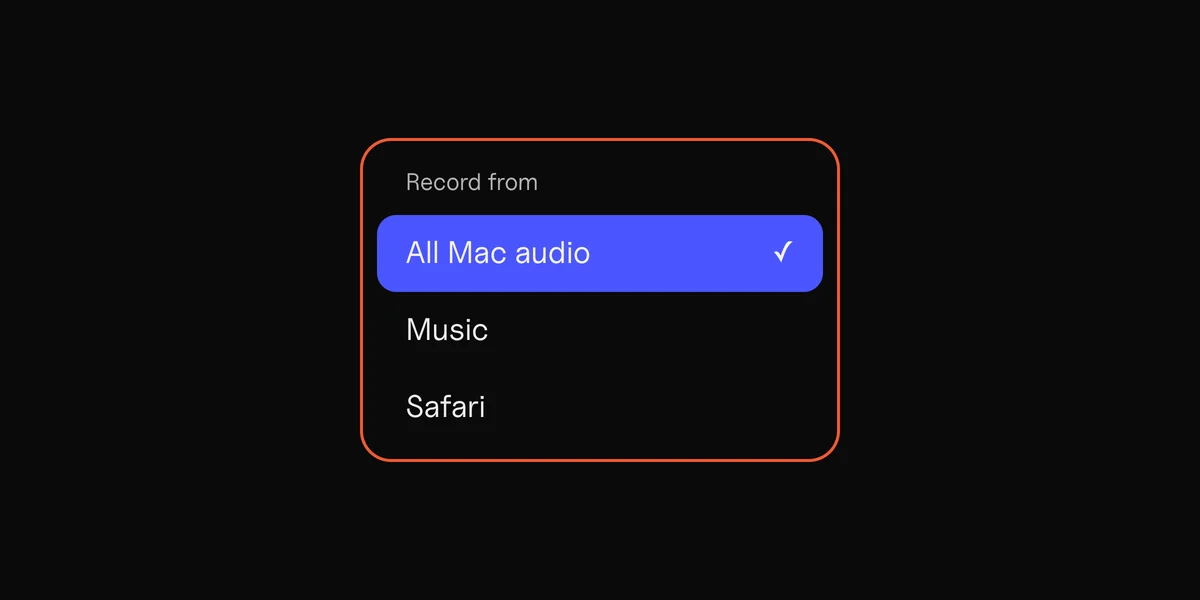
Under Sound from your Mac, choose one app, or All Mac audio for everything.
- 3
Record.
Press Record while it plays, then Stop & keep.
DOT’s Source menu. Pick one app, or All Mac audio.
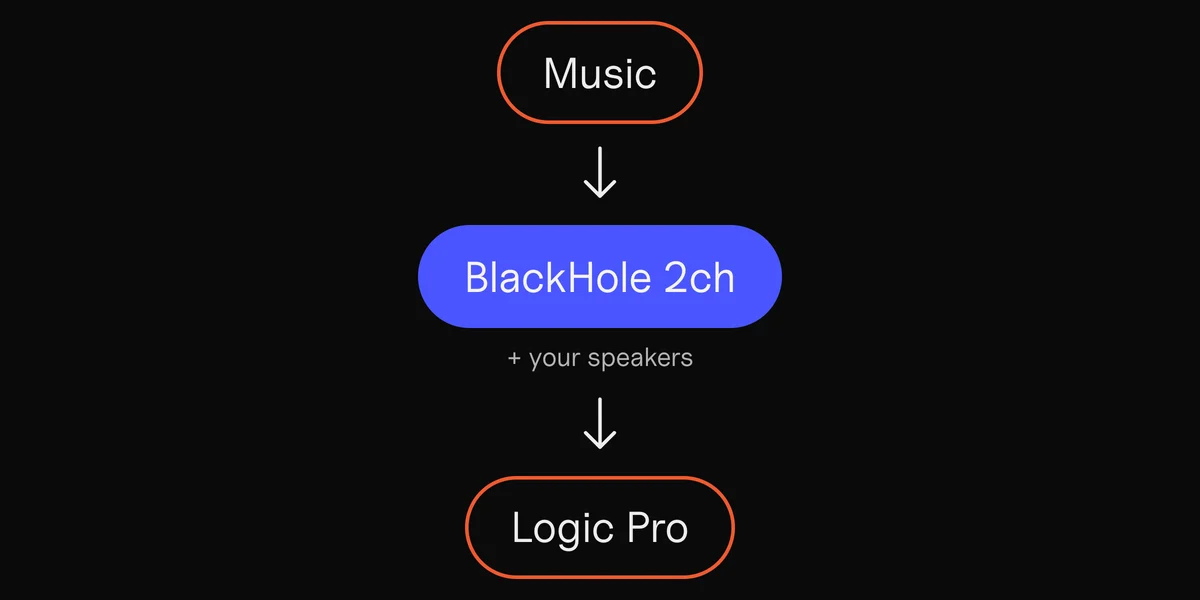
Every way to do it, BlackHole included, is in the guide to recording internal audio on a Mac.
Record a guitar, keyboard or turntable through an audio interface
An audio interface is a small box that brings cables into the Mac over USB, like a Focusrite Scarlett. A DJ mixer with a USB port works the same way. The Mac sees it as one device with several inputs, and you need the ones your sound comes in on.
- 1
Open DOT and click Source.
Turn Mics and inputs On and pick the interface.
- 2
Turn Sound from your Mac Off.
Then only the interface is recorded, and a notification ding can’t land in the middle.
- 3
Play something.
DOT listens on every input and uses the inputs that have sound, like Inputs 3–4. The row shows which. Click the row to try the next inputs with sound.
- 4
Record.
Press Record, play, then Stop & keep.
Sound on inputs 3 and 4, so DOT records those two.
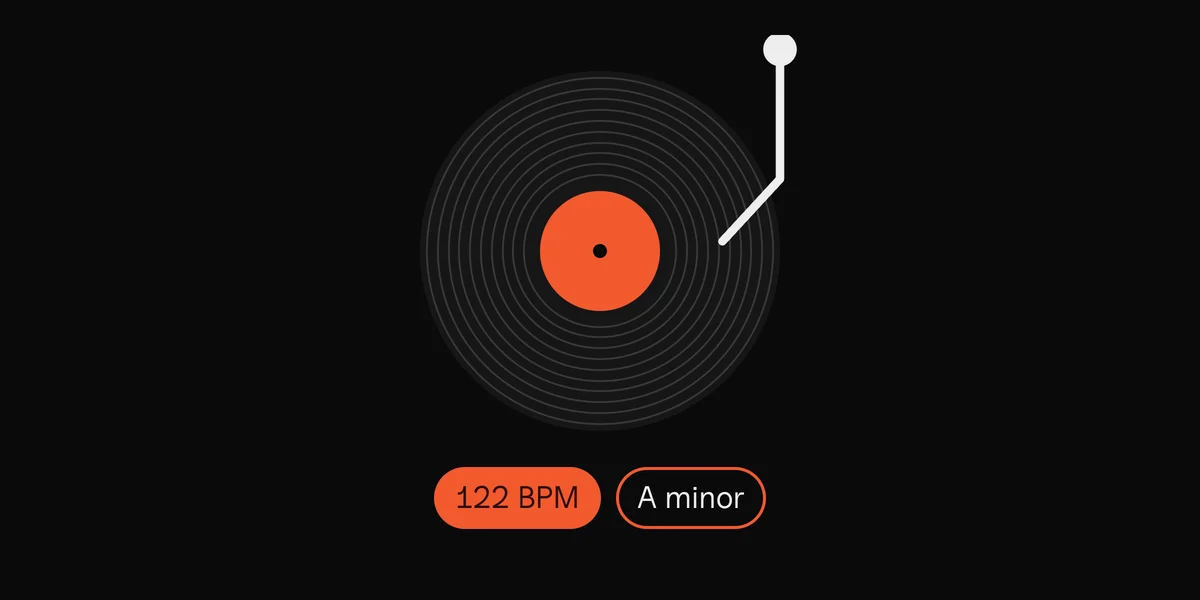
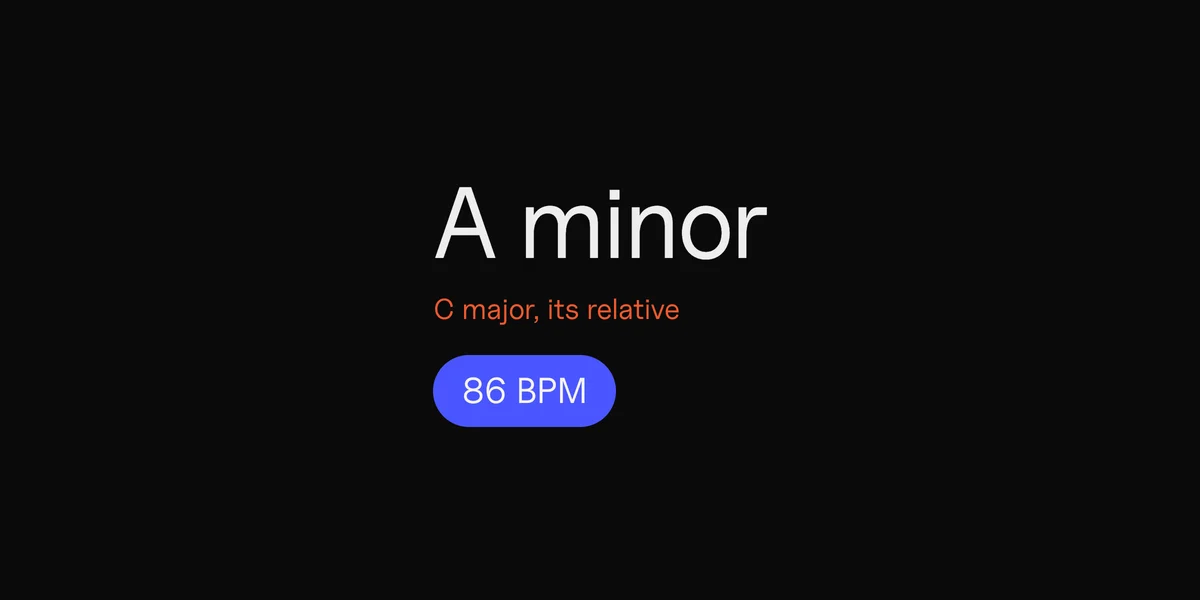
A mic or a guitar on a single input shows as Input 1, and DOT puts it in both left and right. When the recording is music, DOT shows its key and BPM as you record, and the final reading when you stop.
For a band, or a separate track per input, use GarageBand. Make an audio track, open its Smart Controls and pick the channel in the Input menu.
For vinyl, see the guide to digitizing records on a Mac.
Record your mic and the Mac together
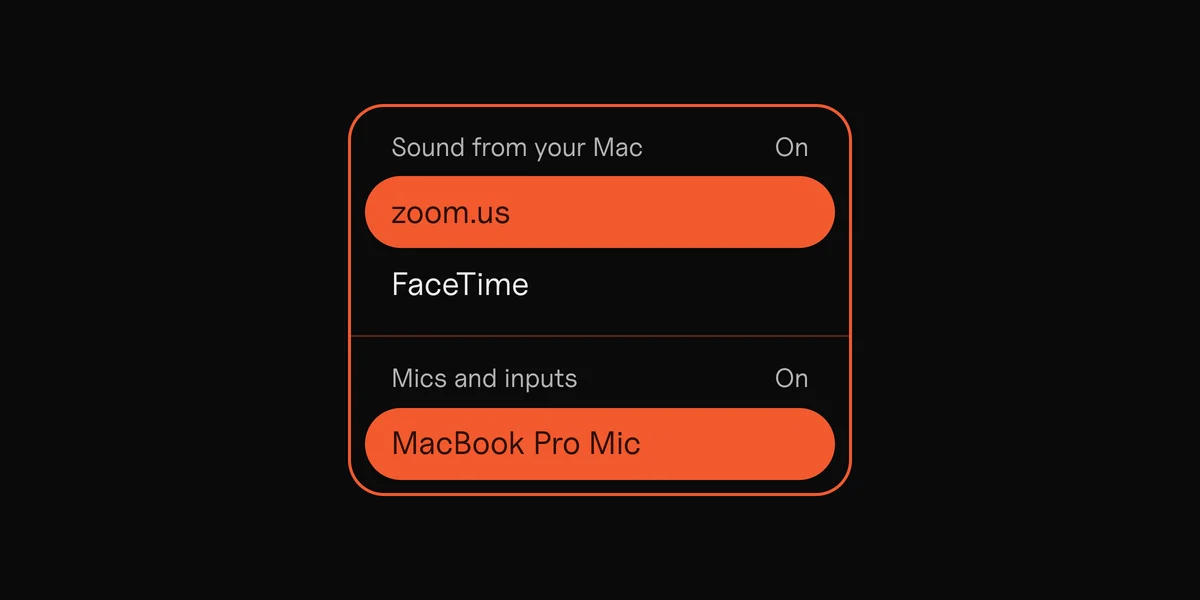
To sing over a beat in the browser, or talk over a track for a video, leave both parts of DOT’s Source menu On. Pick the app under Sound from your Mac and your mic under Mics and inputs. Both end up mixed in one file.
Both parts On. Safari and AirPods Pro, in one recording.
Wear headphones, or the mic picks up the speakers too.
Record the sound of a video, a live stream or a lecture
A video file you have
Open it in QuickTime Player and choose File › Export As › Audio Only. You get the sound as an M4A file, with nothing recorded again.
A video or a live stream as it plays
In DOT, pick the browser or the player under Sound from your Mac, and press Record before it starts. A live stream goes by once. Record only what you have the right to keep.
A lecture in the room
Any mic works, from a MacBook’s own with QuickTime or Voice Memos to a USB mic in DOT. Sit close to the person talking. Distance hurts more than a cheap mic.
A lecture online
It’s a call or a stream, so record the app it plays in. For Zoom, Google Meet, Teams and FaceTime, see the guide to recording a call on a Mac.
DOT has no length limit. It doesn’t make a transcript.