What BlackHole is
BlackHole is an open-source virtual audio device from Existential Audio. It shows up in your Mac's sound settings as both an output and an input. Whatever plays into it comes out the other side, where a DAW, Audacity, OBS or a video call can record it.
- Free (GPL-3.0), with a donation button on the website.
- Three sizes: 2 channels (enough for stereo), 16 and 64 channels for bigger routing.
- Intel and Apple silicon, with no kernel extension and no change to your Mac's security settings. The latest version is 0.7.1, from July 2026.
Install it
- Close your audio apps (DAW, Music, browser tabs that play sound).
- Install BlackHole 2ch, either with the installer from existential.audio/blackhole or with Homebrew:
brew install blackhole-2ch. - Restart your Mac. BlackHole doesn't appear until you do.
Hear and record at the same time
If you set your Mac's output to BlackHole alone, the sound goes into BlackHole and you hear nothing. The fix is a Multi-Output Device that plays to your speakers and BlackHole at once.
- Open Audio MIDI Setup (in Applications › Utilities).
- Click + at the bottom left and choose Create Multi-Output Device.
- Tick your speakers or headphones and BlackHole 2ch. Your speakers must be the top device in the list: it's the clock the others follow.
- Turn on Drift Correction for BlackHole (every device except the top one). Without it, the sound starts to glitch after a few minutes.
- Right-click the Multi-Output Device and choose Use This Device For Sound Output.
- In your DAW or recorder, set the input to BlackHole 2ch, channels 1–2, and record. Your DAW needs Microphone permission to see it.
The catches
- Your volume keys stop working. macOS can't change the volume of a Multi-Output Device. Set each device's level in Audio MIDI Setup instead, and keep your speakers' volume low before you start.
- Switch back when you're done. Until you set the output back to your speakers, everything plays through the Multi-Output Device.
- Some apps don't play through a Multi-Output Device, such as Apple Podcasts and Messages.
- Don't use AirPods as the clock device. Their microphone mode drops the sample rate.
- Watch for feedback. If your DAW monitors the BlackHole input while BlackHole is also in your output, the sound loops back on itself. Turn input monitoring off.
How to uninstall BlackHole
- Set your sound output back to your speakers or headphones (System Settings › Sound › Output), and delete the Multi-Output Device in Audio MIDI Setup.
- Remove the driver, whichever way you installed it:
- Homebrew:
brew uninstall blackhole-2ch - Uninstaller: run the BlackHole uninstaller package from existential.audio.
- By hand: quit every audio app (Audio MIDI Setup and System Settings too), then in Terminal run
sudo rm -rf /Library/Audio/Plug-Ins/HAL/BlackHole2ch.driver(useBlackHole16ch.driverorBlackHole64ch.driverfor the bigger versions).
- Homebrew:
- Restart Core Audio with
sudo killall -9 coreaudiod, or restart your Mac.
The driver lives in the main /Library folder, not the one in your home folder.
When you don't need BlackHole
BlackHole is for sending sound from one app into another, live. Think of a stream going into OBS, a backing track into a video call, or a browser into a DAW track as it plays. For that, it's the best free tool there is (Rogue Amoeba's Loopback, at $99, does the same with a visual router).
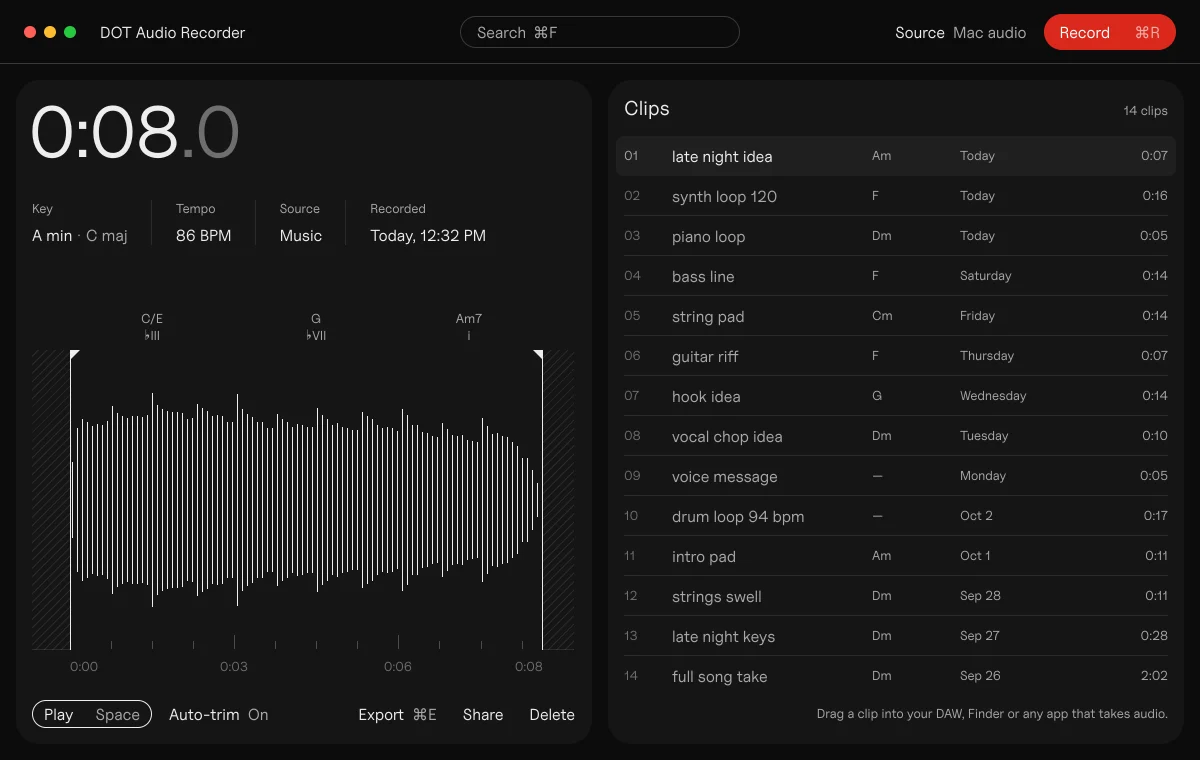
If you only want to record what your Mac is playing, you don't need a driver on macOS 14.4 or later. Since macOS 14.2, apps can capture the Mac's sound directly with one permission. DOT does exactly that. Pick All Mac audio or one app, press ⌘R, then press ⌘R again. The clip lands trimmed, with its key, tempo and chords, ready to drag into your DAW. There's no Multi-Output Device, and your volume keys keep working.
“When I used a routing app, setting it up meant installers and a restart in the middle of a session, and every time I wanted to record in Ableton I had to pick it as my input again. I wanted recording what my Mac plays to be one key.”
Kai Williams, who made DOT
Questions
Is BlackHole safe?
It's open source, widely used, and installs an audio driver, not a kernel extension, so it doesn't need lower security settings. Download it from Existential Audio or Homebrew, not from a third-party site.
Why can't I change the volume after installing BlackHole?
macOS doesn't support volume control on a Multi-Output Device. Change each device's level in Audio MIDI Setup, or switch your output back to your speakers when you're not recording.
BlackHole 2ch or 16ch?
2ch is enough for recording stereo sound from your Mac. The 16 and 64 channel versions are for routing several separate sources at once.
Why is there no sound after installing BlackHole?
Your output is probably set to BlackHole itself. Use a Multi-Output Device with your speakers on top, or set the output back to your speakers.
Does BlackHole work on Apple silicon?
Yes. It supports Intel and Apple silicon Macs and needs no kernel extension.
Sources
- BlackHole on GitHub (README and FAQ), Existential Audio
- Multi-Output Device and Uninstallation, BlackHole wiki
- blackhole-2ch, Homebrew
- Capturing system audio with Core Audio taps, Apple Developer
- Loopback, Rogue Amoeba
 DOT5 min read