What you need
- The song, mixed and mastered, as a WAV or MP3.
- A phone that films in 4K. Most recent phones do.
- Something steady: a tripod, a shelf or a stack of books.
- A speaker to play the song while you film, so you can sing along.
- Light: a window, or the hour after sunrise or before sunset.
- A free editor: iMovie, DaVinci Resolve or CapCut.
- A friend to press record and move the camera. Handy, not required.
Low budget music video ideas
The cheapest good video is one built around what you already have: a room, a friend, a place you love. Pick one idea and do it well.
What you need · Good for
| Idea | What you need | Good for |
|---|---|---|
| Performance in one place | A room, a phone, a tripod | Any song |
| One take | Rehearsal, a moving camera | Songs that build |
| Lyric video | Footage or photos, the words | Songs with strong words |
| Visualizer | Your cover art, an effect | Electronic and beat-led songs |
| Found footage | Old films you’re allowed to use | Moody, nostalgic songs |
| Projector | A projector, a dark room | Night and dreamy songs |
| Tour or day diary | Weeks of phone clips | Releases with a story |
| Dance or movement | A dancer, open space | Upbeat songs |

- Performance in one place is the safest pick. Film the whole song from a few angles in one room, then cut between them.
- One take means one continuous shot, with no cuts. It costs nothing to edit, but it takes rehearsal: every move has to land on its line.
- A lyric video needs no shoot at all. The lyric video guide shows how to time the words.
- A visualizer is your cover art with movement: a slow zoom, or an effect that pulses on the beat.
- A projector throws footage onto you or a wall. It turns one dark room into many looks.
Found footage: check the license first
You can’t use clips from films, TV or other people’s videos just because they’re online. Your upload can be blocked or claimed. Use footage you’re allowed to use:
- Public domain and openly licensed films. The Prelinger Archives on the Internet Archive hold thousands of old films. Each film’s page shows its license, so check it before you download.
- Free stock video. Pexels lets you use and edit its videos for free, without credit. Its limits: people in the clips can’t be shown in a bad light, and you can’t imply they endorse you.
Save the license page for every clip you use, in case your video gets a claim.
A simple music video shot list
One rule makes the edit easy: play the whole song for every setup. Then you have every line from every angle, and the edit can use any of them.
What it shows · Takes
| Shot | What it shows | Takes |
|---|---|---|
| Wide | You and the whole space | Whole song, twice |
| Medium | Waist up, singing | Whole song, twice |
| Close-up | Face and eyes | Whole song |
| Hands | Guitar, keys, the mic | Choruses and riffs |
| Moving | Walking toward or around you | Whole song |
| Cutaways | The place, objects, light | 10 to 20 short clips |
| Hook shot | One strong picture for the hook | A few takes |
| Centered | You in the middle of the frame | The chorus |
The centered shot is for later: it’s the one you’ll crop into vertical clips for Reels and TikTok.

How to shoot a music video on your phone
- Face the light. Put the singer facing a window, or film outdoors in the soft light after sunrise or before sunset. Light from behind turns a face dark.
- Film in 4K, at one frame rate. 24 frames per second looks like film; 30 is fine too. Use the same rate for every shot.
- Lock focus and exposure. On an iPhone, touch and hold the face until AE/AF Lock shows. Focus and brightness then stay put when you or the light move.
- Keep the phone still. Use a tripod, or rest it on something. For walking shots, Action mode on iPhone 14 and later steadies the picture, but it records at most 2.8K.
- Play the song loud, from a speaker next to the camera, and sing along. The phone’s sound is only a guide: you’ll swap it for the master in the edit.
- Clap once at the start of each take. The clap makes a sharp spike in the sound, which makes the takes easy to line up later.
Slow motion that stays in sync: make a copy of the song at double speed, play that on set, and film at 60 frames per second. In the edit, slow the clip to half speed. Your lips land back on the words, in slow motion.

How to edit to the beat
Cuts that land on the beat make a cheap video feel planned. Here’s how to find the beat and cut on it in any editor.
1. Find the BPM
The tempo, in beats per minute (BPM), tells you how long a beat lasts. Drop your song into the free BPM finder, or tap along with the free tap tempo tool. Tap tempo shows half and double time too, which helps when a song at 140 BPM feels like 70.
2. Work out how long a bar lasts
A beat lasts 60 ÷ BPM seconds. Most songs are in 4/4, with 4 beats to a bar, so:
Seconds per bar = 60 ÷ BPM × 4
One beat · One bar · 8 bars
| Tempo | One beat | One bar | 8 bars |
|---|---|---|---|
| 80 BPM | 0.75 s | 3 s | 24 s |
| 90 BPM | 0.67 s | 2.67 s | 21.3 s |
| 100 BPM | 0.6 s | 2.4 s | 19.2 s |
| 120 BPM | 0.5 s | 2 s | 16 s |
| 140 BPM | 0.43 s | 1.71 s | 13.7 s |
At 120 BPM and 30 frames per second, a bar is exactly 60 frames, so you can count cuts in frames.
3. Mark the beats in your editor
Put the master on the timeline first. Then mark the downbeats, the first beat of each bar:
- iMovie: no beat grid. Play the song, stop on a downbeat and press Command-B to split the clip there.
- CapCut: Auto Cut trims your clips to the music’s beats, on the phone and the Mac. Check every cut it makes.
- Final Cut Pro: select the song and press Option-B for Beat Detection. The timeline shows the song’s parts, bars and beats, and with snapping on, edits snap to them.
- Premiere: play the song and press M on each downbeat to drop a marker. Turn on snapping and cut to the markers.
- DaVinci Resolve: press M as the song plays to add markers. Resolve Studio can also find the beats: right-click the music clip and choose Detect Music Beats.
- Canva: select the song, then Beat Sync, then Display beat markers. Snapping clips to the markers is free; syncing them all at once is Pro.
4. Line up your takes
Lay each take over the master and slide it until its clap, or its singing, matches. Then mute the phone’s sound. Many editors can line takes up by their sound for you.
5. Cut on the downbeat
- Cut on beat 1 of a bar. That’s where the kick usually lands and the chords often change, so a cut there feels right.
- Don’t cut every bar. In a verse, change shots every 2 or 4 bars. In a chorus, every bar. Save the fastest cuts for the biggest moment.
- Let a sung line finish before you cut away from a close-up.
- If a cut feels late even on the beat, move it a frame or two earlier and play it again.
6. Change the look when a new part starts
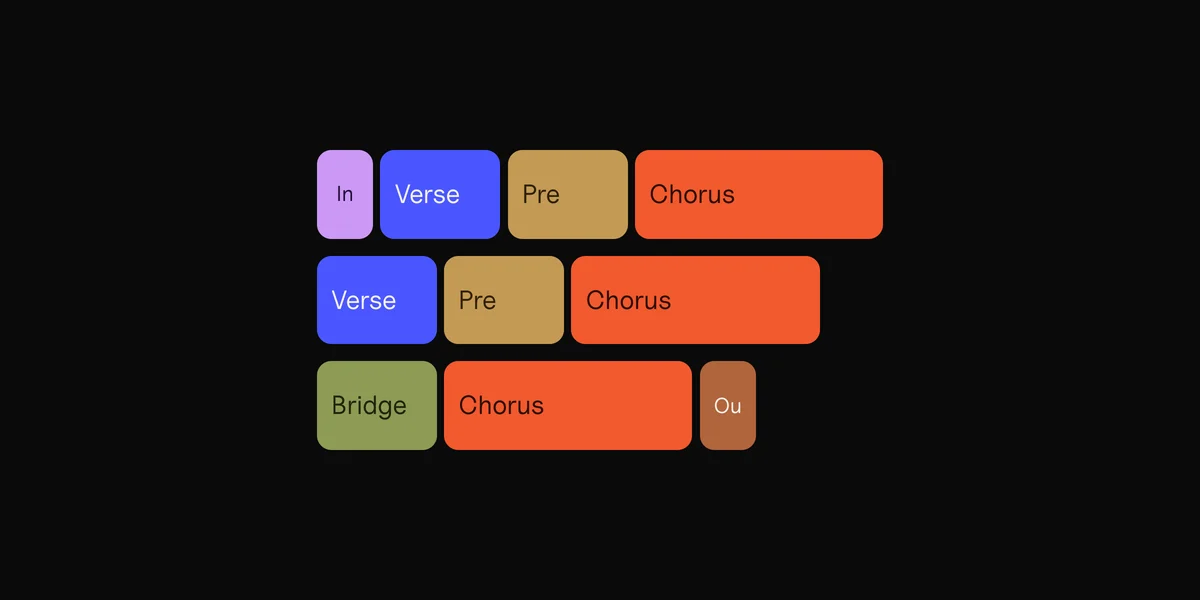
A new part is a natural place for something new: another location, outfit, light or color. Keep one look for the verses and another for the choruses, and save something unseen for the bridge. Parts usually run 4, 8 or 16 bars, so they start on a downbeat too. The song structure guide shows how to find them.

Cut vertical clips from your music video
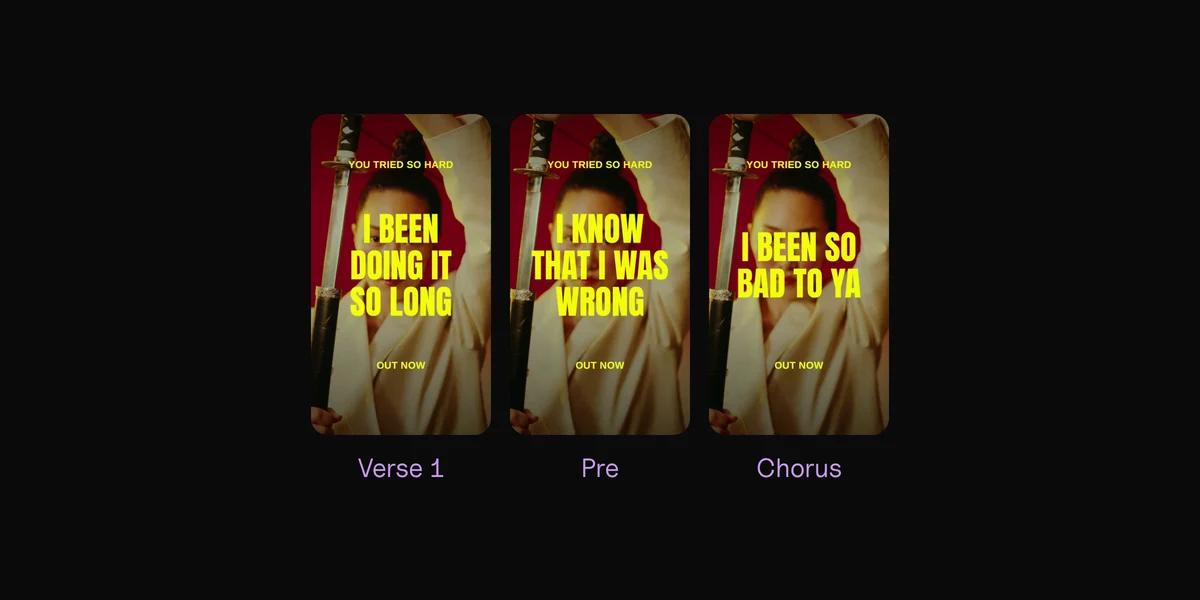
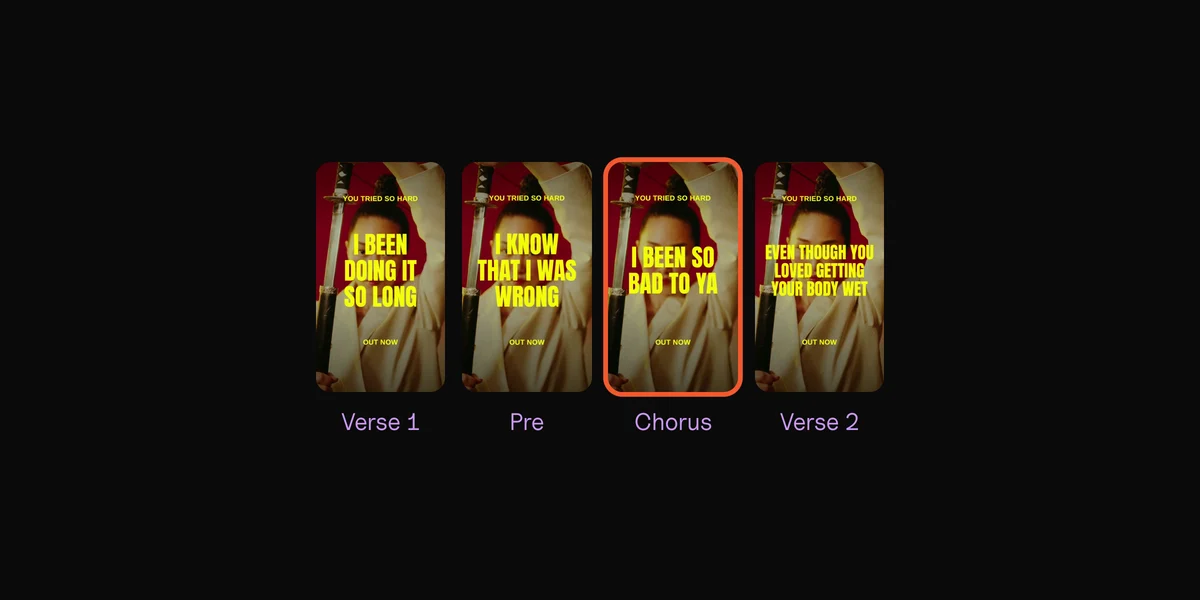
Your music video is one post. Short vertical clips from it are many: one per part, for Reels, TikTok, Shorts and ads.
- Film in 4K and you can crop. A 4K frame is 3840 × 2160. A 9:16 slice of it is 1215 × 2160, more than a 1080 × 1920 clip needs. From 1080p footage, the slice is only 608 pixels wide.
- Keep the singer near the middle in a few takes, so the crop has a face in it. Action mode’s 2.8K is too small for a sharp vertical crop.
- One clip per part. Start where the part hits, not on its first bar. For ads, Meta suggests 6 to 15 seconds.
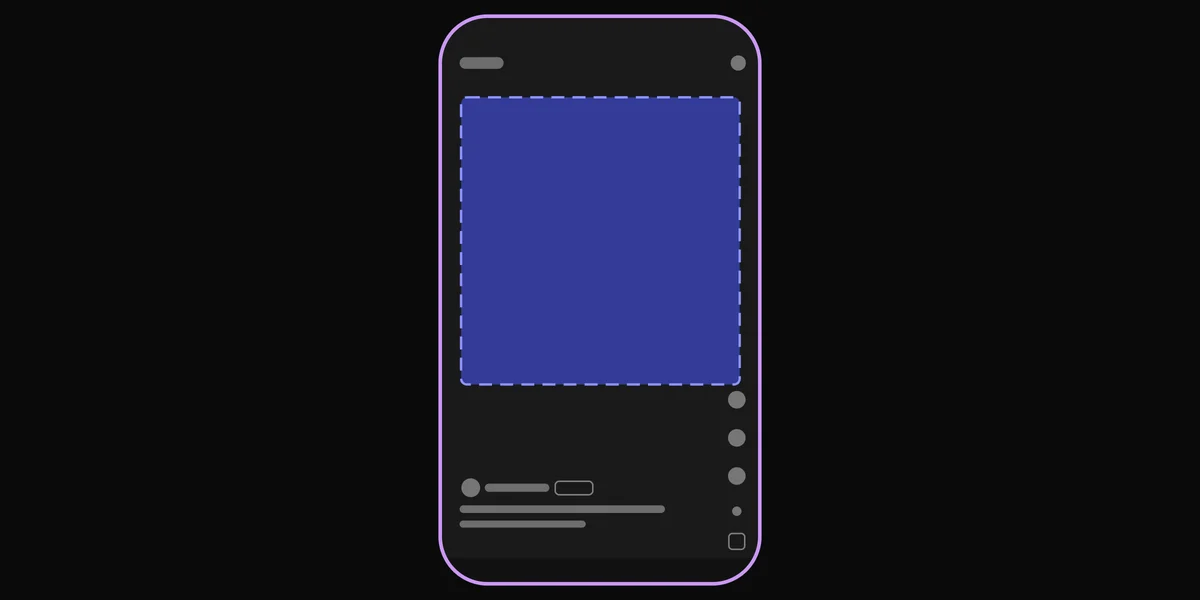
- Keep text out of the edges. On Reels, Meta suggests leaving 14% of the top, 35% of the bottom and 6% of each side free of text. The free safe zone checker shows what each app covers.
- Keep Shorts under a minute if your distributor sends your music to Content ID. YouTube blocks a Short over one minute that has an active copyright claim.

Run a clip of each part as an ad for a week and you’ll learn which part of the song brings listeners. The music ads guide shows how.
Clips makes these for you. Drop in the song and footage from your shoot, and it finds every part, cuts each one into a vertical clip on the beat, and syncs your lyrics word by word. One export makes every part on every backdrop.
What Clips doesn’t do: it doesn’t edit the 16:9 music video itself. It also plays each backdrop from the start of the stretch you pick, so it won’t line a lip-synced take up with the words. Your cutaways and moody shots suit it best.
One song in. An ad for every part.
By hand in an editor
Making 15 videos takes all evening.
Clips
Every part on every backdrop, in one export.
Questions
Can I make a music video with just my phone?
Yes. Film in 4K, face the light, keep the phone steady, and play the song loud so you can sing along. Then edit in a free app such as iMovie, DaVinci Resolve or CapCut.
What’s the easiest music video to make?
A performance in one place. You need one room, a phone on a tripod and the song, and the edit is just choosing between angles. A lyric video or a visualizer needs no shoot at all.
Can I use clips from movies or YouTube in my music video?
Not without permission. Platforms can block or claim your video. Use your own footage, public domain films, or stock video whose license allows it, such as Pexels.
What frame rate should I film a music video in?
24 frames per second for a film look, or 30. Use 60 for shots you’ll slow down. Keep one rate for the whole shoot so the shots match.
Should I film a music video vertical or horizontal?
Horizontal, in 4K, for the main video on YouTube. You can crop vertical clips from it, as long as the singer is near the middle of the frame. If a shot is only for TikTok or Reels, film it vertical.
How long should each shot be in a music video?
Count in bars, not seconds. Two to four bars per shot suits a verse, and one bar suits a chorus. At 120 BPM, a bar lasts 2 seconds.
Sources
- Use iPhone camera tools to set up your shot, Record a video and Models that support Action mode, iPhone User Guide, Apple
- Keyboard shortcuts, iMovie User Guide, Apple
- Edit to the beat, Final Cut Pro User Guide, Apple
- Add markers, Premiere, Adobe
- DaVinci Resolve, Blackmagic Design
- Auto Cut, CapCut
- Beat Sync and Syncing audio with video, Canva
- Prelinger Archives, Internet Archive
- License, Pexels
- Video resolution and aspect ratios and Understand three-minute YouTube Shorts, YouTube Help
- Instagram Reels ad specs and Video ad best practices, Meta
 Clips10 min read